
Understanding the Vendor View
What is the Vendor View
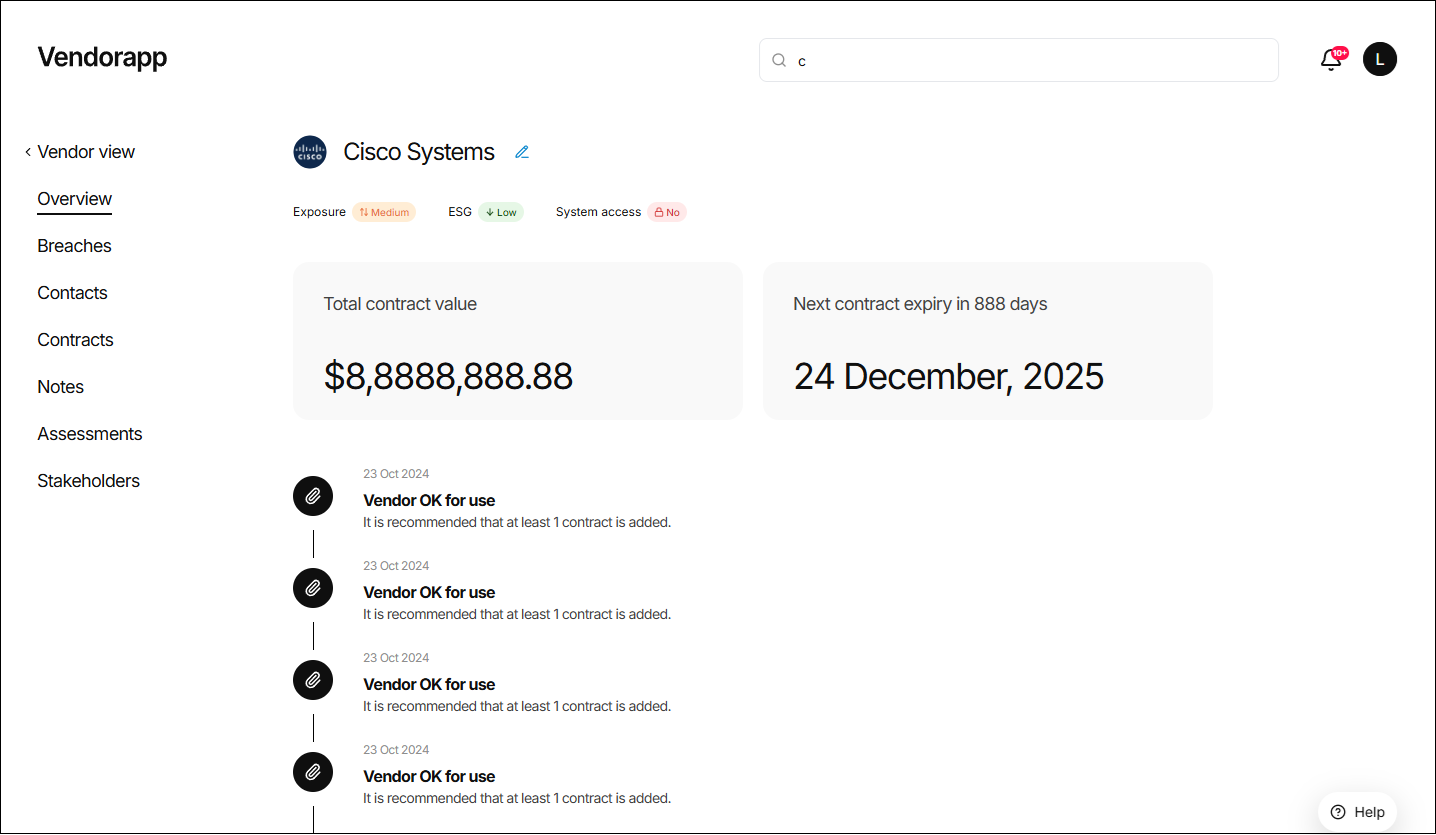
The Vendor View is the central hub for managing and monitoring a specific vendor once they've been added to your internal Vendorapp database. It gives users a complete snapshot of the vendor's risk profile, contract status, history, and associated records — all in one place.
This page is accessible to all users, although some elements (like contract values, certain actions, or edit access) may be restricted depending on your user role and access level.
How to access the Vendor View
There are two main ways to access the Vendor View page:
-
Using the Lookup Function:
- If a user searches for a vendor that already exists in your internal database, selecting that vendor from the lookup dropdown will take them directly to the Vendor View.
-
Via the Vendor List:
- Clicking on a vendor's name in the Vendor List will redirect the user to that vendor's individual Vendor View page.
Key information displayed
At the top of the Vendor View, users will see:
-
Vendor Logo and Name
- Clicking the logo will open the vendor's website in a new browser window.
- Agents will see an edit icon next to the name, allowing them to rename the vendor for clarity (e.g., changing "Cisco Systems, Inc." to "Cisco").
-
Risk Summary Indicators
- Exposure Risk: High / Medium / Low (based on the vendor's risk across data privacy, information security, business continuity, etc.)
- ESG rating: one, two or three leaves — more leaves means stronger ESG evidence (based on public data around sustainability and governance)
- System Access: Yes / No (determined by whether any active contract grants system or premises access)
-
Contract Summary
- Total Active Contract Value: This figure will be shown or redacted depending on your permissions.
- Next Expiry Date: The expiry date of the next active contract.
-
Timeline Panel
- Shows the chronological activity for the vendor — including when they were added, assessed, blocked, disabled, had contracts added, had breaches raised, and more.
Key timeline events include:
- Pre-screening completed – No international sanctions found
- Sanctioned vendor approved – An agent has approved the use of the vendor
- Exposure risk assessment completed – Vendor's inherent risk is (low, medium, high)
- ESG Profiling completed – Environment, sustainability, governance assessment result, shown on the vendor as one to three leaves
- Vendor is OK for use – It is recommended to upload at least one contract
- Contract is added – (low, medium, high) access risk contract added by (user)
- Breach added – Concerning breach has been acknowledged by (user)
- Breach closed – Concerning breach has been resolved by (user)
- Contract expired – (contract name) has expired. Stakeholders removed
- Contract cancelled – (contract name) has been cancelled. Stakeholders removed
- Contract ownership transferred – (contract name) transferred to (user)
- Annual reassessment triggered – New assessment result now active
- Ad-hoc assessment – (user) has performed an ad-hoc assessment
- Vendor has been disabled – All data archived. Stakeholders removed
- Vendor has been blocked – Vendor cannot be used. Stakeholders removed
- Shows the chronological activity for the vendor — including when they were added, assessed, blocked, disabled, had contracts added, had breaches raised, and more.
Key timeline events include:
Understanding risk indicators
Each vendor has three key risk scores displayed on their Vendor View:
-
Exposure Risk
Reflects the vendor's overall operational and data-related risk. Based on factors such as information security, data privacy and continuity.
-
ESG rating
Provides a profile of the vendor's environmental, sustainability, and governance risk using publicly available information, shown as one, two or three leaves (three leaves = low ESG risk, one leaf = high ESG risk). Updated through pre-screening or ad-hoc assessments.
-
System Access (ARR Impact)
Indicates whether any of the vendor's active contracts grant access to your internal systems or access to personal identifiable information or intellectual information.
- Yes: At least one active contract has Medium or High ARR.
- No: All active contracts have Low ARR, or access is not granted.
- Greyed Out: No active contracts currently exist.
If a vendor is Blocked or Disabled, these risk indicators will appear in a grey outline without colour fill.
Navigating the vendor menu
Along the left-hand side of the Vendor View, users can access multiple tabs:
-
Overview: The main summary page (as described above).
-
Breaches: View, raise, and manage reported breaches tied to this vendor.
-
Contacts & Addresses: View and manage vendor contact details and office locations.
-
Contracts: Review all contracts associated with this vendor, including contract owners and access risk levels.
-
Notes: Add or review notes tied to this vendor (only visible to permitted users).
-
Assessments: Access past pre-screening and risk assessments (with partial or full visibility based on your plan).
-
Stakeholders: View and manage who has been added as stakeholders to contracts for this vendor.