
Add/Manage Contracts
Who can add and manage contracts
All users in Vendorapp can add contracts to vendors. However, managing contracts (editing, transferring, cancelling) is role-based.
-
Agents can view and manage all contracts but cannot rename or cancel contracts unless they are the contract owner.
-
Contract Owners have full control over the contracts they added, including:
- Renaming the contract
- Transferring ownership (with restrictions)
- Adding stakeholders
- Requesting cancellation
-
Stakeholders can view the contract and contract value.
-
Viewers can see contract names only if they are stakeholders, but cannot perform any actions.
If a contract owner no longer has an active contract, they revert to viewer access for that vendor.
Viewing the contract list
To view contracts:
- Navigate to the Vendor View for a specific vendor.
- Select the Contracts tab from the left menu.
You'll see a list of all contracts associated with that vendor, with the following columns:
- Document Name
- Owner
- Value (obscured unless you have access)
- Access Risk (ARR: Low, Medium, High)
- Expiry Date
- Actions (...)
Clicking on a contract opens it in a new browser window (if permitted). If you don't have access, the contract value will show "$ Hidden", and you will not be able to click the contract link.
Adding a contract
To add a contract:
- Go to the Contracts tab under a vendor.
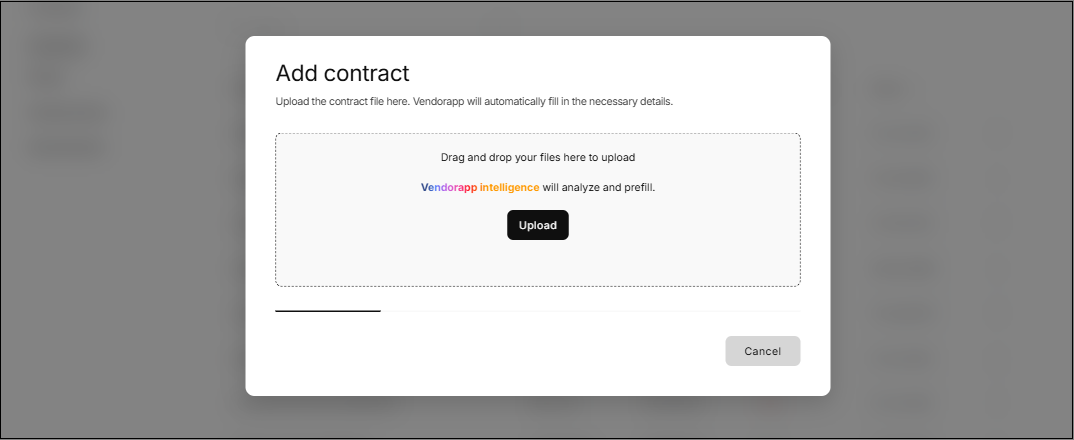
- Click the "Add contract" button (top-right).
-
Upload the contract by dragging the file or clicking Upload contract.
-
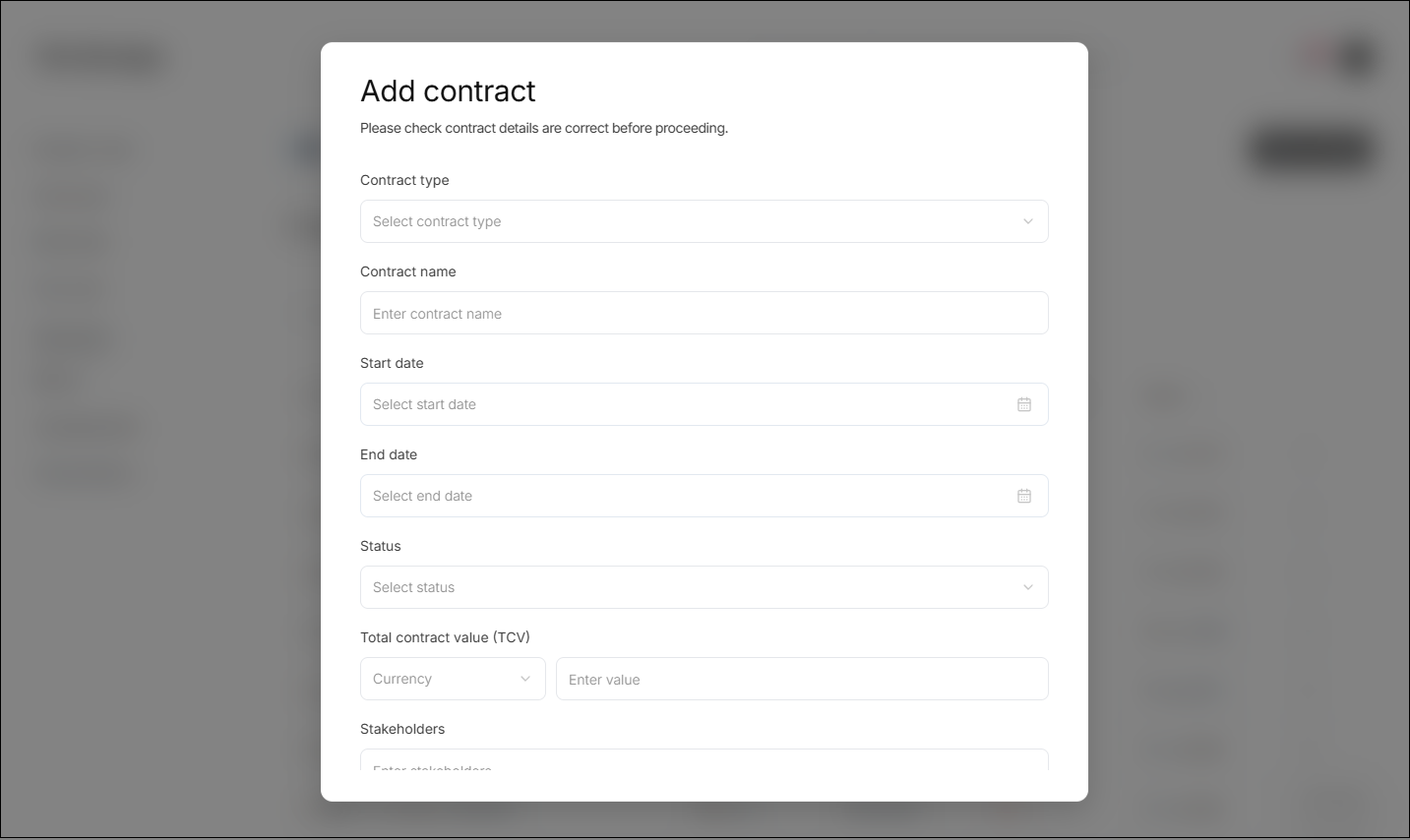
Vendorapp intelligence will automatically extract key contract data, including:
- Contract Type
- File Name
- Start Date and End Date
- Renewal Deadline
- Contract Status (Active/Archived)
- Currency and Total Contract Value
⚠️ If the contract has no end date, the following fallback rules apply:
- NDA: Archived after 36 months.
- All other contracts: Archived on expiry date or 12 months from start date, whichever is sooner.
After confirming the extracted contract data, click Continue to move to the ARR workflow.
Access Risk Rating (ARR)
Once the contract details are confirmed, Vendorapp will initiate the Access Risk Rating (ARR) process:
-
The user will be presented with up to 5 questions, one per screen.
-
Questions are dynamic and based on the contract type and extracted data.
-
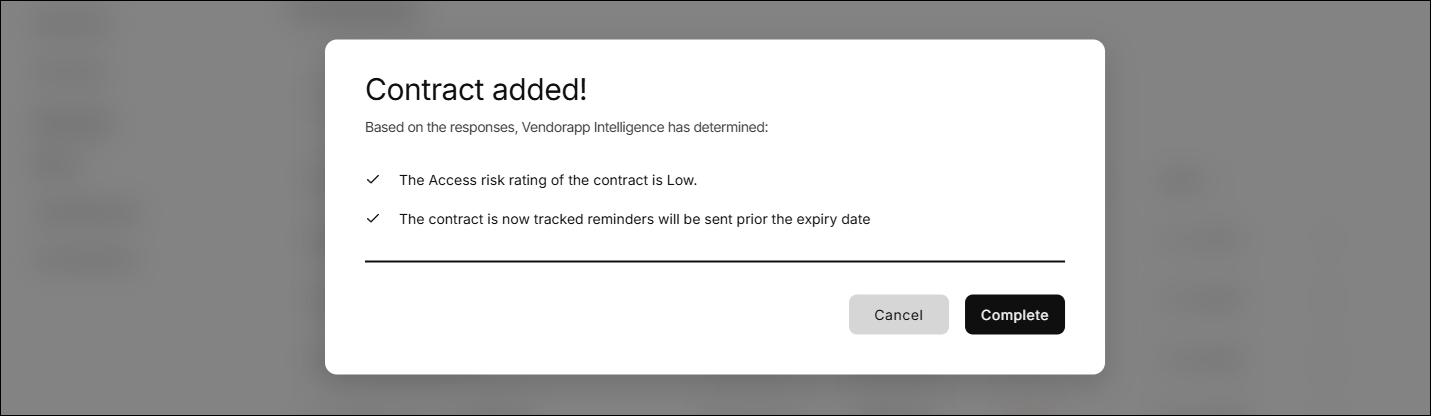
Responses determine the ARR: Low, Medium, or High.
ARR influences whether the vendor is marked as having System Access on the Vendor Overview page.
- Low ARR: No system or premises access.
- Medium/High ARR: Indicates elevated access risk.
The final ARR result is shown in a modal once the questions are complete.
Contract actions: rename, transfer, stakeholder management, cancel
Each contract row includes a ... menu with different options based on the user's role:
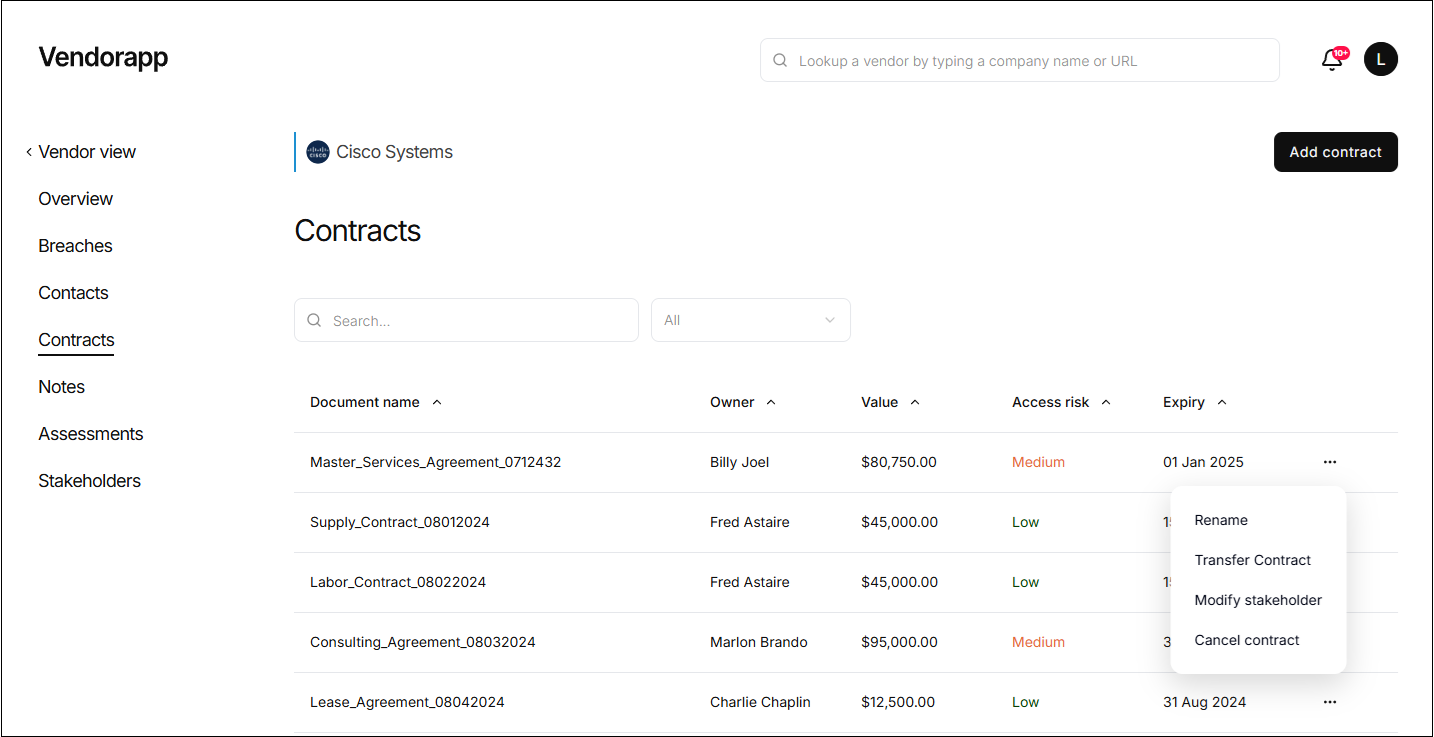
Rename Contract
- Available to the contract owner only
- Opens a modal to update the contract name
Transfer Contract
- Available to contract owners and agents
- Not allowed within 60 days of expiry or after the renewal deadline
- The recipient must be an existing user or will be sent an invite if not in Vendorapp
- Contract becomes active for the recipient only after login and acceptance
- Notifications are sent to both the original and new owner
Add Stakeholders
- Available to contract owners and agents
- Opens a modal to invite a stakeholder by name or email.
- If the stakeholder is new to Vendorapp, an invite is sent
- Stakeholders gain visibility into the contract value and document.
Cancel Contract
- Available only to the contract owner
- Opens a modal to request contract cancellation with two options:
- Company direction changed (no breach required)
- Issue with vendor's product/service
- Requires linking to a Concerning breach that has been acknowledged.
⚠️ Contracts with no breach or without an acknowledged "Concerning" breach cannot be cancelled due to vendor performance.
Closing a contract
Closure is different from cancellation. Cancellation is requested by the contract owner (see Cancel Contract above); closure is part of a contract's natural lifecycle and is driven by Vendorapp as the contract approaches its end date. You don't start it from the ... menu — instead Vendorapp raises a Close contract task for the owner and agents to action.
When the close task is raised
- Vendorapp generates a Close contract task 5 days before the contract's cancellation/renewal deadline — that deadline is the end date minus the notice period, so the task is raised
notice period + 5days before the end date. If the contract has no notice period, the task is raised 5 days before the end date. This gives the owner and agents a 5-day window to act before the deadline. (Example: a contract ending 4 July with a 1-day notice period has its deadline on 3 July, so the task is raised on 28 June.) - When the task is created, Vendorapp emails the contract owner to let them know there is a close-contract task to action.
Actioning the task
- Open the Close contract task from the Tasks list.
- Select either:
- Generate a closure message — Vendorapp Intelligence drafts a closure notification you can copy and send to the vendor, or
- This contract does not require a closure notification.
- After you continue past this step, the task moves to In Progress — the contract is not closed yet.
- To finalise, open the task's ... menu, choose Closure acceptance, enter the date the contract was closed, and confirm.
The contract is then marked Closed, effective the closure date you entered, and a notification confirming the closure is sent to the contract owner and agents.
Offboarding
When you select "This contract does not require a closure notification", or when you accept the closure in the Closure acceptance modal, an Offboarding section appears so you can record how the relationship is being wound down — a data return / deletion confirmation (with an optional evidence reference and request date) and a short checklist (final invoices settled, assets returned, access revoked, confidentiality obligations reaffirmed). This is recommended but not mandatory: if you leave it incomplete, Vendorapp shows a warning and the button changes to "Continue anyway" so you can still finish the closure.
Filtering Contracts
At the top of the Contracts list, a dropdown filter allows users to view:
- Active
- Archived
- All
Contracts that are archived cannot be deleted — they remain for recordkeeping.
Additional logic and plan limits
-
If a user reaches their plan limit for active contracts:
- Attempting to add a new contract will trigger a warning:
"Plan limit reached, upgrade plan."
-
Only users with permission can view contract values and access documents.
-
If a contract is added with no end date and a $0 value, it is auto-archived after 12 months.
-
If no active contract exists for a vendor after 60 days, the vendor is automatically disabled.
-
Cancelled contracts are archived using the Confirm cancellation flow by agents.
-
Agents receive notifications to close or archive contracts based on expiry or renewal settings.