
Add/Manage Breaches
Who can add a breach
Breaches in Vendorapp are tied directly to specific contracts with a vendor. Not every user can raise or manage breaches — access depends on role and relationship to the vendor:
- Agents can raise breaches for any vendor and view all breaches across the platform.
- Contract Owners can raise breaches only for vendors where they hold an active contract.
- Stakeholders of an active contract can view breach details.
- Viewers can see the breach list and documents but cannot raise, manage, or edit breaches.
If a user does not meet the conditions to raise a breach, the "Add breach" button will appear greyed out.
How to raise a breach
To raise a breach:
-
Navigate to the Vendor View for the vendor in question.
-
Click on the Breaches tab in the left-hand menu.
-
Click the "Add breach" button (top right of the screen).
- If the button is greyed out, the user does not have permission.
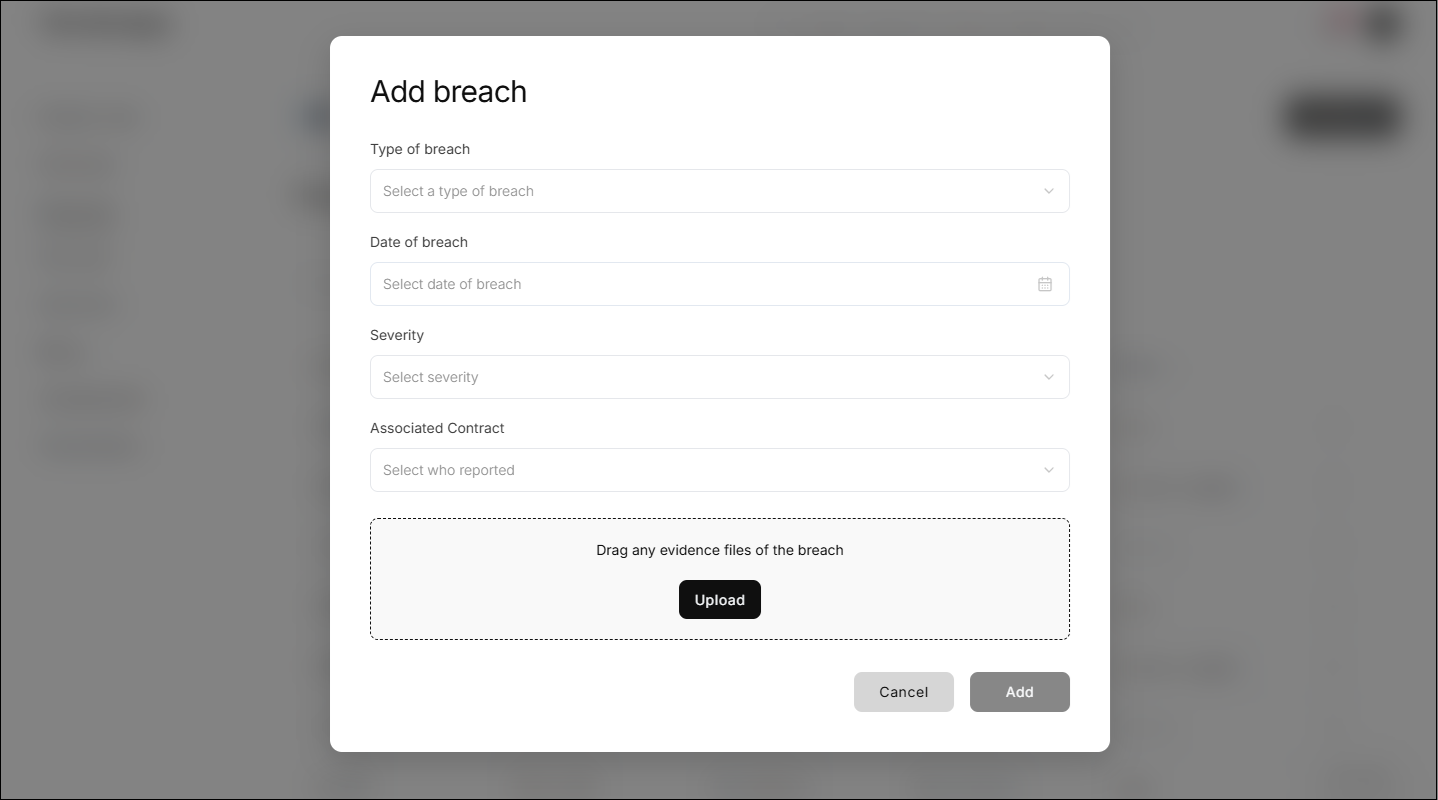
A modal pop-up will appear prompting the user to provide the following information:
-
Breach Type:
Choose one from the dropdown:
- Security incident / Data leak
- Service disruption
- Compliance failure
- Breach of contract
-
Date of Breach:
Select the date the incident occurred.
-
Severity:
Choose from:
- Low
- Moderate
- Concerning
(Only "Concerning" breaches will trigger a task for agent review.)
-
Associated Contract:
Select the relevant contract from the dropdown. This list will show only the user's active contracts for that vendor (agents will see all active contracts).
-
Upload Supporting Document:
Upload a Word or PDF file. This could be a formal report, an email screenshot, or even a simple pasted news article.
Uploading a document is mandatory.
Once the form is complete, clicking "Add" will raise the breach and return the user to the Breach list, where the new entry will appear.
Breach categories and severity levels
Breach Type options allow users to classify incidents for audit and response purposes:
- Security incident / Data leak
- Service disruption
- Compliance failure
- Breach of contract
Each breach must be assigned a severity:
- Low: Minimal impact, typically informational.
- Moderate: Noticeable impact but contained.
- Concerning: Serious, potentially high-risk incident.
- Triggers a review task for an Agent.
Breach workflow
When a breach is raised, its path depends on the assigned severity:
-
Low / Moderate:
- No task is generated.
- Breach appears as Active in the breach list.
- Only the requestor and stakeholders will receive notifications.
-
Concerning:
- A task is automatically created and assigned to an Agent.
- The Agent can:
- Acknowledge the breach (and optionally downgrade its severity).
- Reject the breach.
- Once reviewed, the breach will be updated to reflect its final status and notifications sent.
Note: A breach must be acknowledged with "Concerning" severity before a request can be made for a contract to be cancelled for a breach of contract.
Breach statuses and filtering
Each breach has a dynamic status depending on its severity, contract state, and agent review:
-
Under Review:
- Assigned to a "Concerning" breach with an open Agent task.
-
Active:
- All Low/Moderate breaches with active contracts.
- Concerning breaches that were acknowledged.
-
Archived:
- Any breach tied to an archived or cancelled contract.
- Any "Concerning" breach that was rejected by an Agent.
At the top of the Breaches tab, users can filter the list using:
- All
- Under Review
- Active
- Archived
Managing breaches
The Breach list shows the following columns:
-
Type: Security/Data, Compliance, Service, Contract
-
Severity: Low, Moderate, Concerning
-
Date
-
Raised by
-
Status: Under Review, Active, Archived
-
Actions (...)
- View document – Opens the uploaded file in a modal window.
- View associated contract – Opens the linked contract if the user has permission. Otherwise greyed out.
- Delete – Only the user who raised the breach or an Agent can delete it. Greyed out for others.
Other Notes:
- When a contract is archived, all associated breaches are archived.
- If a vendor is disabled, all breaches tied to them are archived automatically.
- Archived breach documents remain accessible to permitted users.
- Notes added to a breach by the document owner are not editable once submitted.
- Breaches will be archived after 12 months of the date they were raised.