
Add/Manage Notes
Who can view and add notes
The Notes section provides a space for users to log relevant information or internal comments about a vendor.
Access is role-based:
- All Users can view notes on the Vendor View page, regardless of their role.
- Contract Owners with an active contract can add notes.
- Agents can add, edit, archive, and delete any notes.
- Viewers cannot add, edit, archive, or delete notes.
Only the note creator or an Agent can make changes to a note.
If a contract owner no longer has an active contract with the vendor, their ability to add new notes or manage existing ones is removed. Their notes will be automatically archived.
How to add a note
To add a note:
- Go to the Vendor View for the relevant vendor.
- Select the Notes tab from the left-hand menu.
- Click "Add note" in the top-right corner (button is greyed out for ineligible users).
A modal will appear with a text box where the user can enter the note content.
- Notes can be plain text, or the user can paste in copied content.
- There is no character limit, but the app is responsive and truncates notes in the list view for readability.
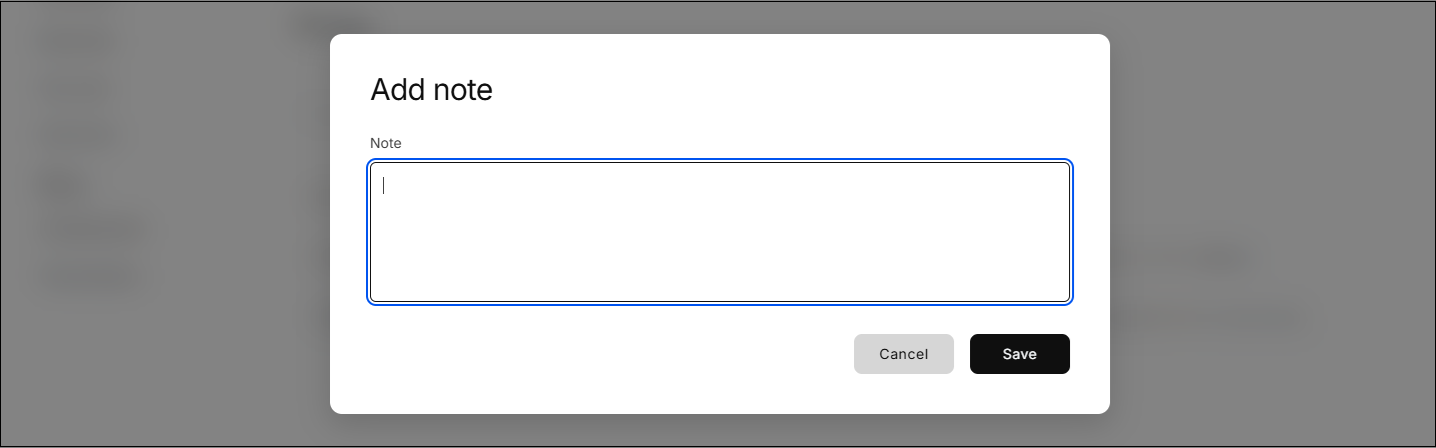
Once the user clicks Save, the note is added to the list and immediately visible to all users.
Editing, archiving, and deleting notes
Only the user who created the note and Agents can manage individual notes.
Click the ... menu on a note to access these options:
-
Edit:
- Opens the modal with the existing note for updating. Only the original creator or an Agent can edit.
-
Archive:
- Archives the note and moves it to the archived list
- Archived notes are still visible to all users but clearly marked and appear in the filtered view
-
Delete:
- Permanently removes the note
- This action is only available to the note's creator or Agents
- A confirmation modal will ask the user to confirm deletion
If a user without permission clicks the ... menu, the items will be greyed out and inactive.
Viewing notes
The Notes list displays the following columns:
- Date: Date the note was added
- Note Owner: The user who created the note
- Excerpt: A preview of the note content (first few lines that fit on screen)
- Actions (...): For permitted users to manage the note
Clicking on a note opens the full content in a modal window.
Notes filtering and search
At the top of the Notes screen:
-
A dropdown filter allows users to view:
- Active
- Archived
- All
-
A search bar enables users to search within the content of the visible notes based on the current filter.
The list view dynamically updates as users search or switch filters.
Additional rules and auto-archiving
-
If a note creator's active contract is archived, cancelled, or expires, their notes are automatically archived.
-
Notes are also auto-archived after 12 months, regardless of contract status.
-
Archived notes remain visible but are separated in the view and clearly marked.
-
There is no current support for tagging or categories — all notes are text-based.